
Transcripts
By the end of this page, you’ll know how to turn transcripts on, where to find one, and how long it sticks around.
Turning transcripts on
Section titled “Turning transcripts on”Under Server Settings > Ticket Archive Settings, enable Store Ticket Transcripts, and optionally pick a Transcripts Channel to be notified in when one is generated. With this on, closing a ticket saves its full conversation - messages, attachments, and embeds - permanently (subject to the retention window below).
Viewing a transcript
Section titled “Viewing a transcript”Open the Closed or All tab on your Tickets page and click a closed ticket - if a transcript exists, it opens at a permanent link (/transcript/:id). That link resolves without a dashboard login, so it can be shared with anyone, including people outside your server - message author names, avatars, and colours shown are pinned to how they looked at send-time, so a later Discord nickname/avatar change doesn’t retroactively rewrite older messages in the transcript.
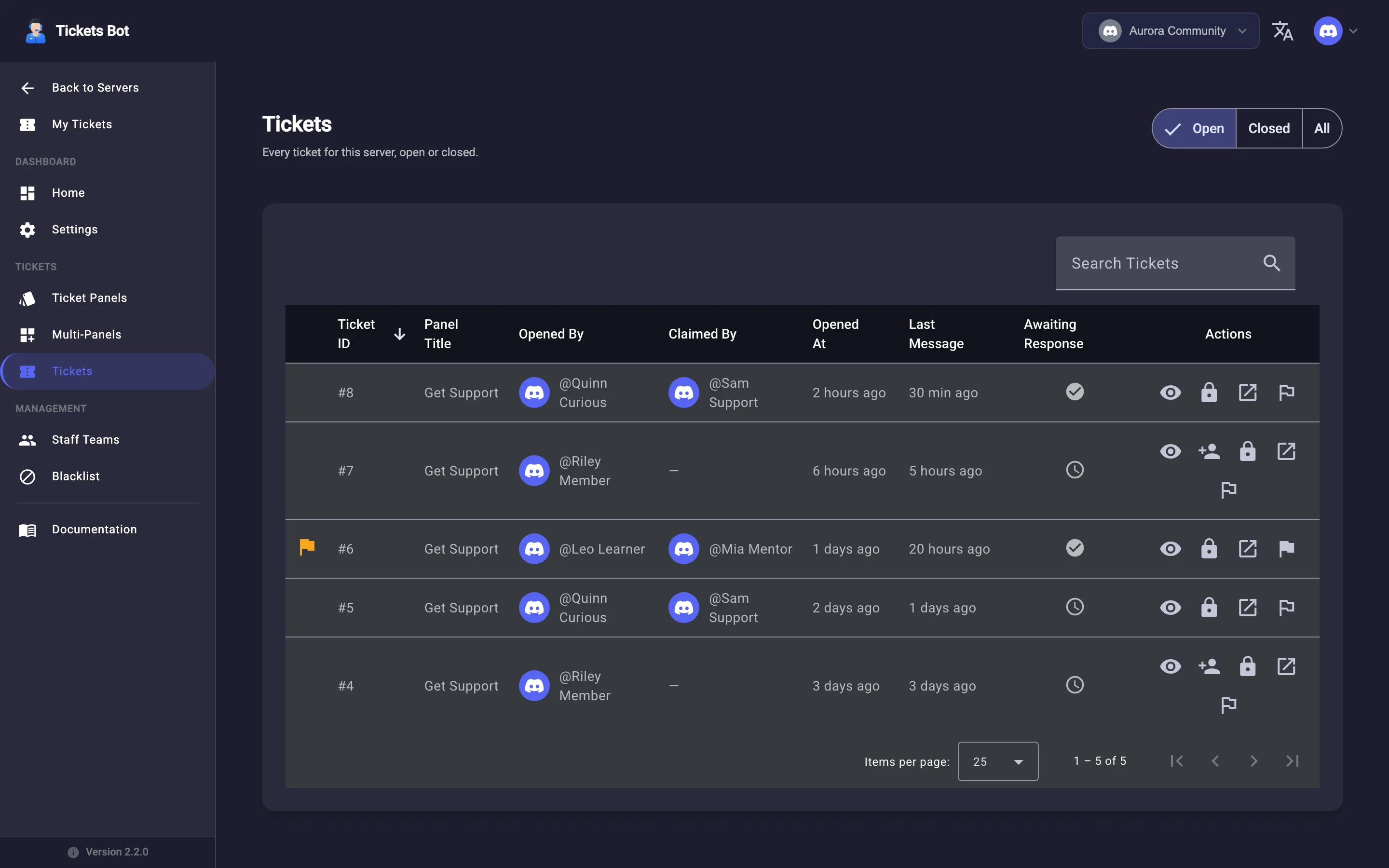
If a ticket was closed without transcripts enabled, its dashboard entry falls back to showing the thread’s live message history instead of a saved transcript.
Retention
Section titled “Retention”How long a transcript stays available before it’s deleted depends on whether your server is premium - see Premium for the current default windows and how they’re configured. Retention only affects the saved transcript content: the ticket’s own record (who opened it, when, which panel) is kept regardless. Once a transcript’s window has passed, its link shows an “expired” state rather than “not found” - those are deliberately different outcomes, since one means “this never existed or you have the wrong ID” and the other means “this ticket really happened, but its saved conversation is gone now.”
See Premium for retention windows, or My Tickets for how members (not just staff) find their own tickets’ transcripts.