
Multi-panels
By the end of this page, you’ll know how to combine panels you’ve already created into a single message, and what’s different about premium here.
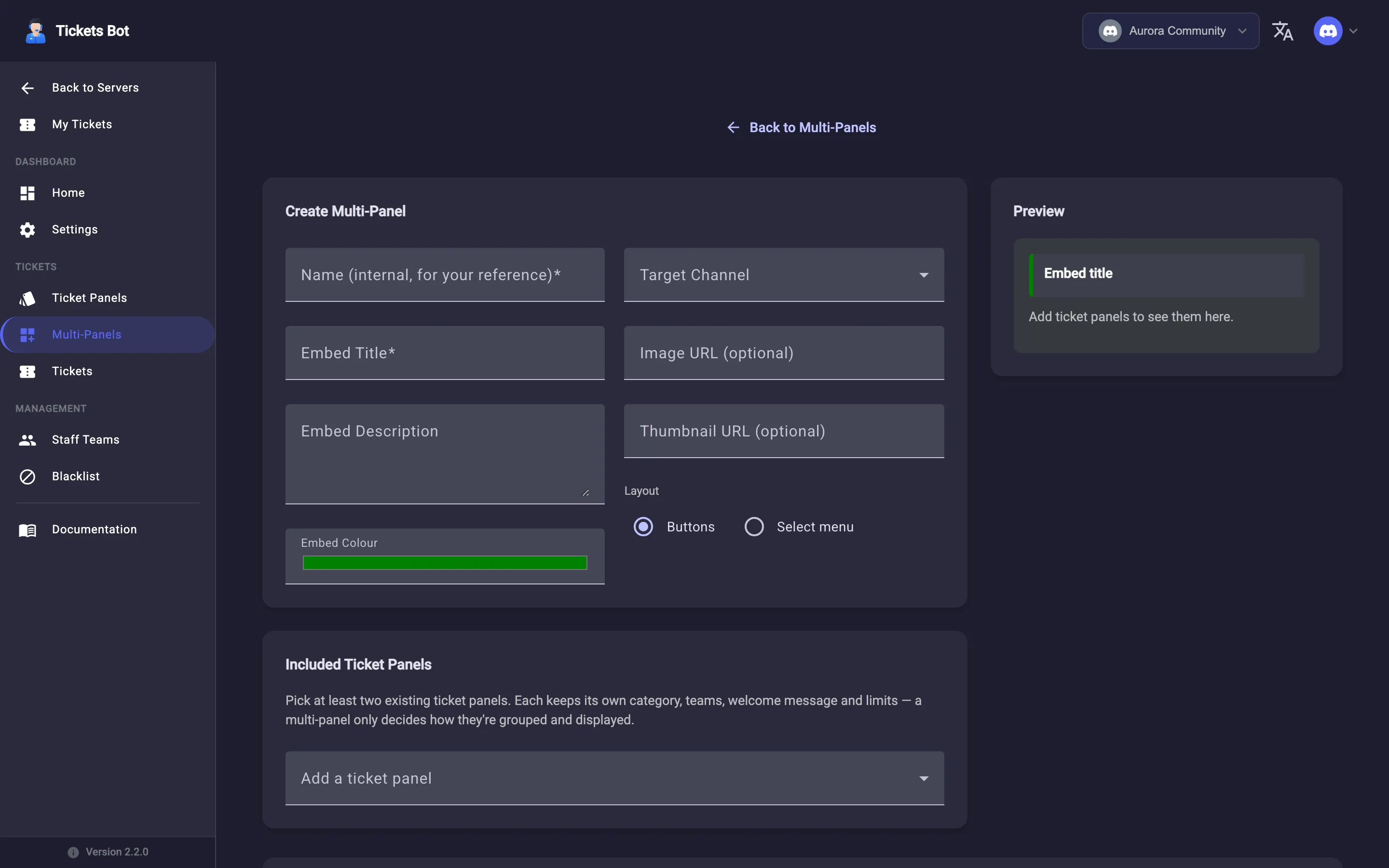
A multi-panel doesn’t create a new kind of ticket - it groups two or more ticket panels you’ve already built behind a single Discord message, so members pick from several buttons (or a dropdown) instead of you posting a separate message per panel. Each included panel keeps its own category, support teams, welcome message, and access rules; the multi-panel only controls how they’re grouped and displayed.
Creating one
Section titled “Creating one”From Multi-Panels in the sidebar, click Create Multi-Panel (locked with a “Premium” badge if your server isn’t premium). The form covers:
- Name - internal only, for your own reference in the dashboard.
- Embed Title / Embed Description / Embed Colour - the message’s own content.
- Target Channel - where it gets posted.
- Image URL / Thumbnail URL - optional.
- Layout - Buttons (one button per included panel) or Select menu (a single dropdown).
- Included Ticket Panels - pick at least two existing panels, then reorder them with the up/down arrows.
A live preview of the Discord message updates as you fill the form in.
Publishing, syncing, and unpublishing
Section titled “Publishing, syncing, and unpublishing”Creating a multi-panel only saves the configuration - use Publish to actually post it. If you add/remove/reorder its panels afterward, the list shows a Needs sync badge until you click Sync to push those changes to the live message. Remove published message takes the message down from Discord but keeps the saved configuration, so you can republish later without rebuilding it. Delete Multi-Panel removes the configuration entirely - the individual ticket panels it referenced are untouched.
See Staff teams for how the teams assigned to your underlying panels actually work.